More upload headroom on nbn, expected by the end of October
nbn is adding an overhead allowance of up to 15% to upload speeds on most connections, expected by the end of October: the same kind of headroom download has had for years. Speed tests should show upload at or a little above your plan speed. Here is what overhead is, why it matters, and how to get the most out of it with your own router.

Update, 18 October 2026: every FTTP and HFC plan gets the 15% upload allowance, from 25/10 all the way up to the 2000 plans. We first said 750/50 and the 2000 plans would get 10% and 1000/100 and 1000/400 none, and we've corrected the figures below.
nbn is adding an overhead allowance to the upload side of its speed tiers. nbn's July 2026 integrated roadmap lists it as "Introducing 15% Overhead Allowance on upstream across all AVC TC-4 tiers on all fixed line access technologies" (item RMID 1248), planned for September 2026, and in its response to the ACCC's draft determination nbn says it plans to extend the allowance to upload. nbn hasn't given us a confirmed date, but we expect it by the end of October 2026. We couldn't confirm the exact allowance either, but the figures below are the most likely ones.
On FTTP and HFC, your upload limit on the nbn network is expected to go up by 15% on every plan, so a 50 Mbps upload gets room for about 57.5 Mbps of traffic on the wire. FTTN and FTTB are likely to get a smaller allowance; see the figures by plan.
What changes for you
Until now, nbn counted the packaging around your data (more on that below) against your upload speed. A 50 Mbps upload topped out at around 47 to 48 Mbps in a speed test, and nobody could ever quite reach the number on the plan.
With the allowance, speed tests on FTTP, HFC and FTTC should show upload at or a little above your plan speed. On FTTN and FTTB the allowance is likely to be smaller, so expect to land close to your plan speed there rather than above it. Video calls, cloud backups and uploads to work all get a bit of breathing room.
Most likely figures, by plan
nbn hasn't published upload figures for each plan. Customer reports and other providers point to 15% on every FTTP and HFC plan, and we expect a smaller 4% on FTTN and FTTB. nbn also describes the allowance as something it provides when and where network capacity permits, not a guaranteed speed. In practice, speed tests tend to land 8 to 10% above plan speed rather than the full 15%, depending on your router, the test server and other factors.
| Plan | Allowance | Upload with the allowance |
|---|---|---|
| 25/10, 50/20, 100/20, 100/40 | 15% | 50/20: 20 up to 23 Mbps |
| 250/100, 500/50, 500/200, 750/50 | 15% | 500/50: 50 up to 57.5 Mbps |
| 1000/100, 1000/400 | 15% | 1000/400: 400 up to 460 Mbps |
| 2000/100, 2000/200, 2000/500 | 15% | 2000/200: 200 up to 230 Mbps |
| FTTN and FTTB, any plan | 4% | 50/20: 20 up to 20.8 Mbps |
| Fixed Wireless | not known | assume none for now |
Fixed Wireless isn't a fixed line technology, so nbn's roadmap doesn't cover it, and what has been reported for it so far doesn't agree.
nbn makes the change on its side and may roll it out gradually, so don't worry if your service doesn't pick it up straight away. We'll update this article once we see it live.
What Neptune is doing
Nothing needs to change on our side, because we don't put a limit on your upload. Whatever nbn lets through, we carry. The extra room shows up as soon as nbn switches it on for your service.
Download is different, and the reason is where each limit sits on the path. Download comes from the internet through us first, then through nbn to you, so we can hold it to your plan speed before nbn ever sees it. Upload goes the other way: from your router, through nbn's policer, and only then to us. By the time your upload reaches Neptune, nbn has already dropped whatever went over the limit.
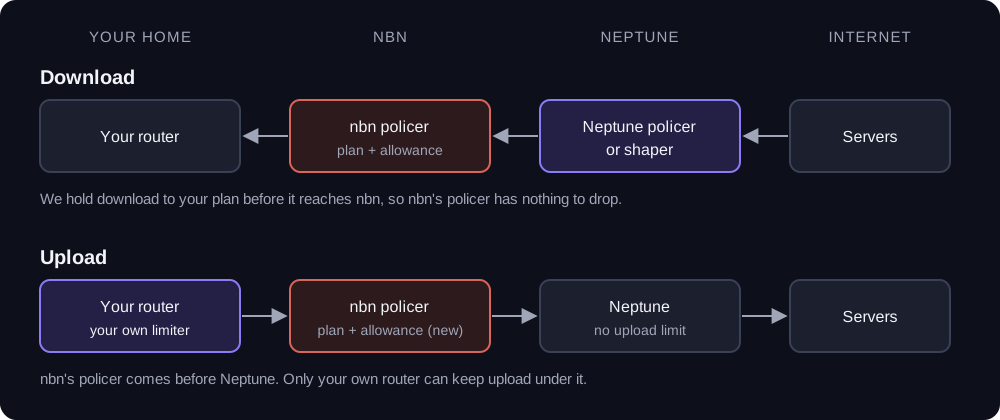
That is why the only place that can keep your upload neatly under nbn's limit is your own router. More on how to do that at the end.
What is overhead?
Think of sending a parcel. You put the contents in a box, wrap them in bubble wrap so they arrive in one piece, and stick a label on the outside with the sender and the recipient so the postal system knows where to take it. The box ends up bigger than what is inside it, and it takes more space in the delivery van than the contents would on their own.
The internet works the same way. Your data (a photo, part of a video call, a file you are backing up) is the contents. Before it goes anywhere it gets packed in layers of headers: one says who it is from and where it is going, one keeps track of which piece this is and makes sure nothing goes missing, and one gets it across the local link. Those headers are the box, the bubble wrap and the label.
nbn's speed limit is the size of the van, and it measures the boxes, not what is inside them. So if your plan is a 50 Mbps van, only about 47.7 Mbps of it is your data. The overhead allowance makes the van bigger (by up to 15%) so the packaging fits on top of what you paid for.
The technical version
Most of your traffic travels in full-size packets. On an Ethernet network like nbn, the largest IP packet is set by the MTU (maximum transmission unit), which is 1500 bytes. Everything has to fit inside that, headers included:
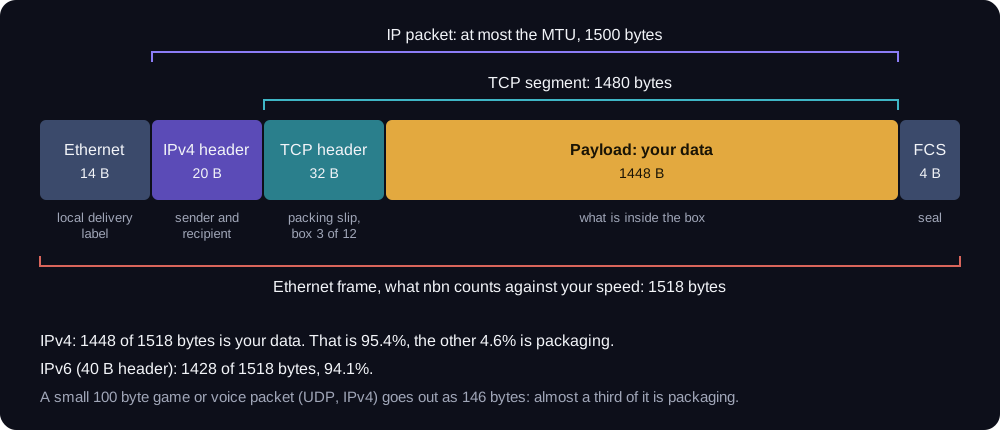
- IP header, 20 bytes for IPv4 or 40 bytes for IPv6: the sender and recipient addresses.
- TCP header, 20 bytes plus usually 12 bytes of options (timestamps): sequence numbers, acknowledgements and window size, so lost pieces get resent and they are put back together in order.
- Payload: what is left for your data. 1448 bytes in a typical IPv4 TCP packet.
Around that, Ethernet adds its own 14 byte header and a 4 byte checksum, and that 1518 byte frame is what nbn counts against your speed. With IPv4, 95.4% of it is your data. With IPv6, 94.1%. If you use PPPoE, it adds another 8 bytes inside the MTU, so the payload shrinks a little further.
Full-size packets are the best case: the headers are the same size whether the box is full or nearly empty, so throughput is highest when every packet carries as much payload as it can. Small packets, like the ones games and voice calls send, are mostly packaging. A 100 byte game update goes out as a 146 byte frame.
Here is what that means for a speed test on a plan with a 15% allowance, using full-size IPv4 packets:
| Upload speed | nbn limit before | Your data before | nbn limit after | Your data after |
|---|---|---|---|---|
| 20 Mbps | 20 Mbps | about 19.1 Mbps | 23 Mbps | about 21.9 Mbps |
| 50 Mbps | 50 Mbps | about 47.7 Mbps | 57.5 Mbps | about 54.8 Mbps |
| 200 Mbps | 200 Mbps | about 190.8 Mbps | 230 Mbps | about 219.4 Mbps |
Download had this already
nbn has had the same kind of allowance on download since around 2020: 10 to 15% depending on the tier, and none on 1000/100 and 1000/400, which is why download speed tests on a good connection land at or above plan speed. Upload is now catching up.
Our download limiter is set to your plan speed plus a margin for nbn's allowance. On a 500 Mbps plan that is 565 Mbps. The 1000 Mbps tier has no allowance, so there we limit at exactly 1000. The Advanced tab shows the figure for your own service.
A refresher on Traffic management
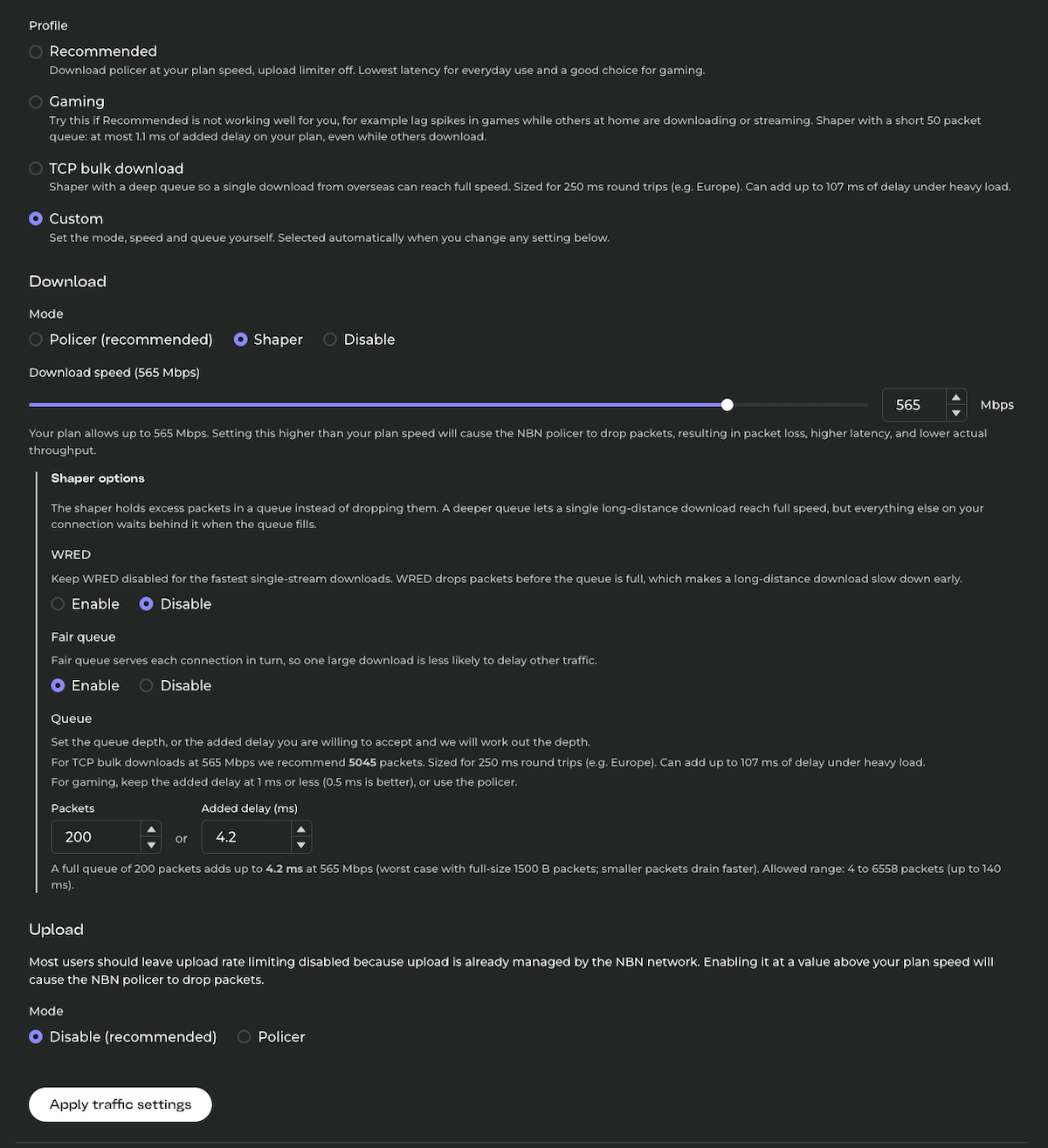
You'll find these settings under Advanced, in the Traffic management section of your subscription in the portal. We covered the basics when we first introduced them, and the section has grown since.
Policer or shaper on download
A policer drops packets the moment traffic goes over your speed. It adds no delay, which makes it the best choice for most people and for gaming. The cost is that short bursts above the limit get dropped, and TCP slows down when it notices.
A shaper holds those bursts in a queue and sends them a moment later instead of dropping them. Fewer packets are lost, so a single long download (say from a server in Europe) can reach full speed. The cost is delay: while the queue is full, everything else on your connection waits behind it.
Rather than tuning that by hand, pick a profile:
- Recommended: download policer at your plan speed, upload limiter off. The lowest latency for everyday use, and a good choice for gaming.
- Gaming: a shaper with a short 50 packet queue. Try it if Recommended isn't working well for you, for example lag spikes while others at home are streaming. On a 500 Mbps plan a full queue adds about 1 ms of delay; the portal shows the figure for your speed.
- TCP bulk download: a shaper with a deep queue, sized so a single download from overseas reaches full speed. It can add up to about 107 ms of delay under heavy load, so it is not one for gamers.
- Custom: set the mode, speed and queue yourself, including WRED and fair queueing. The portal works out the queue depth from the delay you are willing to accept, and shows how much delay a full queue adds at your speed.
You can also disable our download limiter, but we don't recommend it. nbn still enforces its own policer, and when you hit it, packets are dropped in a way you can't control: you get packet loss, bufferbloat and speed tests well below your plan.
Upload
The upload limiter is off by default and we recommend leaving it off. As the diagram above shows, it sits on our side, after nbn's policer, so it can't stop nbn from dropping your upload. It is there if you want to cap your upload below your plan for your own reasons.
Set up your own upload limiter
nbn's upload policer drops anything over the limit, and from your side that looks unpredictable: a big upload starts, latency jumps, a video call stutters, and the upload itself runs below what it should.
The fix is a limiter on your own router, set a little below nbn's limit. Your router then becomes the narrowest point, and the queue forms where it can be managed well. With fair queueing (fq_codel or CAKE), your video call gets sent ahead of the photo backup instead of waiting behind it.
Most good routers can do this. Look for SQM in OpenWrt, Smart Queues in UniFi, queue types (fq_codel or CAKE) in MikroTik RouterOS, or FQ-CoDel limiters in OPNsense and pfSense.
How high to set it:
- Once the allowance is live, take your plan's upload speed plus the allowance for your technology, and set your limiter about 5% below that. With 15%, that is about 10% above plan speed (55 Mbps on a 50 Mbps upload). On FTTN or FTTB, with the expected 4%, it is about your plan speed (20 Mbps on a 20 Mbps upload).
- Before your service gets the allowance, or on Fixed Wireless, set it at about 95% of your plan speed. On a 50 Mbps upload, that is 47.5 Mbps; on a 100 Mbps upload, 95 Mbps.
- If your router lets you set link overhead (CAKE and OpenWrt SQM do), set it for Ethernet. The router then counts the packaging too, slightly more than nbn does, so you can go a little closer to the full allowance.
Then test it. Run a speed test that measures latency under load, such as a bufferbloat test, while uploading. If latency still climbs a lot during the upload, lower the limit a few Mbps and try again.
If you get stuck, get in touch and we will help you set it up.