BGP sessions you can set up yourself
Customers on a business plan with their own AS number and address space can now request a BGP session with Neptune straight from the portal, pick the prefixes to announce, and get a ready-made config for their router. No AS number? We can announce your range for you instead.

Updated 7 October 2026: you no longer need an ABN. A business plan on FTTP or HFC is all it takes, see who can use it.
If you have your own AS number and address space, you can now ask for a BGP session with us from the portal. There is a new BGP tab on services on a business plan, next to Reverse DNS and Advanced.
Until now this was an email thread. You would write to us, we would look up your AS, go back and forth about prefixes, and one of our engineers would configure the session by hand. It worked, but it was slow for you and tedious for us, and typing router config by hand is how mistakes get made. Most of that is now done by software, with a person still checking each request before anything goes live.
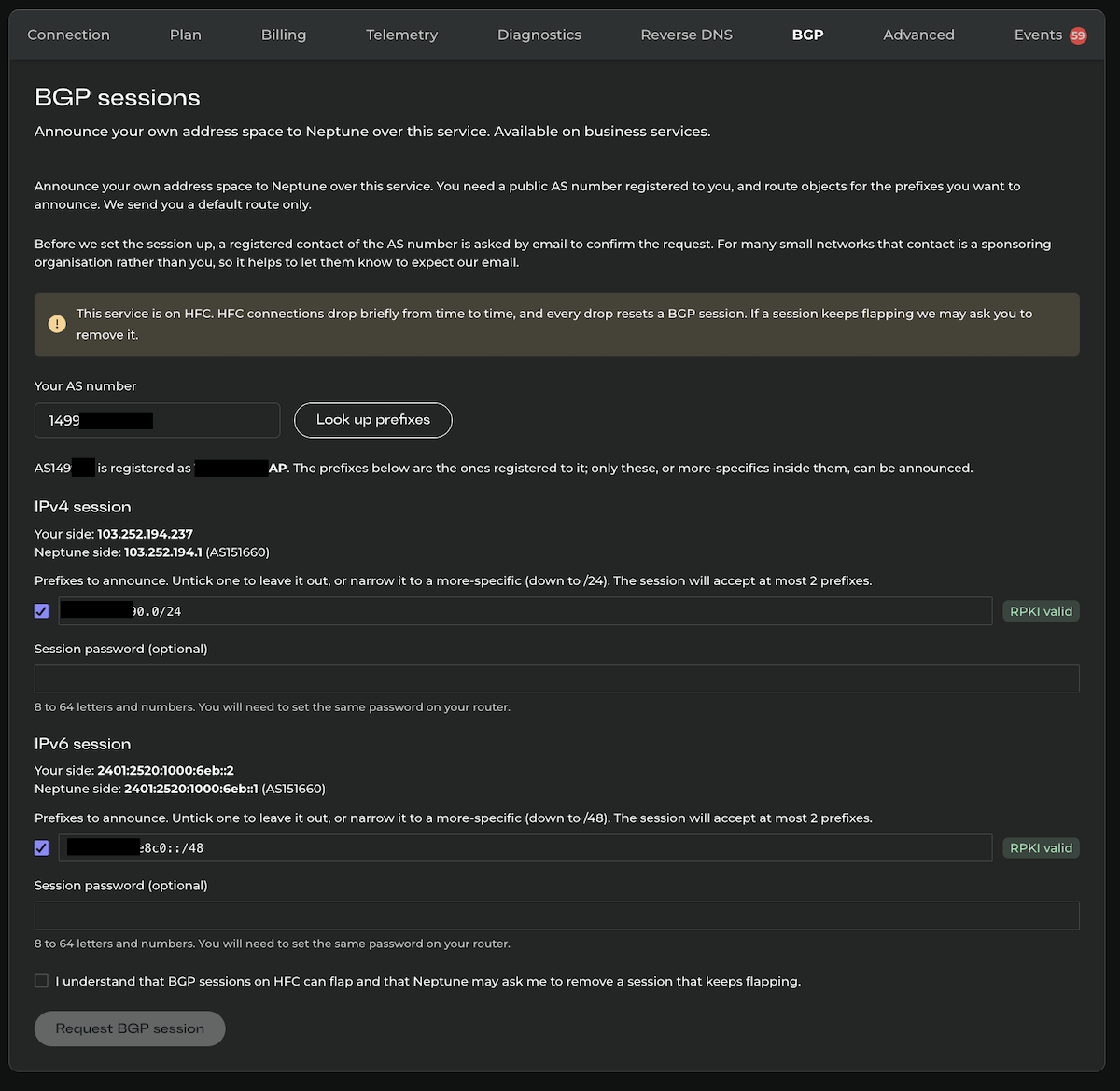
How it works
Type in your AS number and press Look up prefixes. We check the routing registries (APNIC for most of our customers) and show you the IPv4 and IPv6 prefixes registered to that AS, each with its RPKI status next to it.
From there you choose what to announce. Untick anything you want to leave out, or narrow a prefix to a more-specific, down to a /24 for IPv4 and a /48 for IPv6. You can't type in a prefix that isn't registered to your AS. That is deliberate, and it's the same rule we would want every other network to apply to ours.
IPv4 and IPv6 are separate sessions and you can ask for one or both. The page shows the addresses for each side before you submit, so you know what you are getting. If you would like an MD5 password on the session you can set one there too.
What happens after you submit
Three things, in this order:
- We confirm the request with the AS holder. An email goes to the contact registered for the AS number, asking them to confirm that the session is expected. For a lot of smaller networks that contact is a sponsoring organisation and not you, so give them a heads up.
- One of our engineers reviews and approves it. Someone on our network team looks at every request. That part is staying.
- The session is configured and switched on. Once it is approved, the configuration is pushed to our router and read back to make sure it landed the way it should.
You can follow all of this in the portal, and we will message you as it moves along.
Config for your router
Once the session exists, the BGP tab gives you configuration you can copy for MikroTik RouterOS 7, Cisco IOS XE, Cisco IOS XR and Junos, already filled in with your addresses, AS numbers and prefixes. It is a starting point and you should read it before you paste it, but it saves looking up the details.
We send you a default route only, for both IPv4 and IPv6.
Looking after it later
A few things you can do without talking to us:
- See whether the session is up, and how many of your prefixes we have accepted.
- Shut the session down and bring it back up, which is handy if you are doing maintenance on your side.
- Remove or narrow prefixes.
- Change the password.
- Delete the session when you no longer need it.
No AS number? We can announce it for you
Added 7 October 2026. Not everyone who owns a range wants to run BGP. If you have a /24 (or an IPv6 /48 or larger) registered to you but no AS number and no router that speaks BGP, the same tab now has a second option: Announced by Neptune. We announce your range from our AS, AS151660, and route it to your service, so you use it on your LAN like any other addresses. No session, no filters, nothing to configure on your side beyond putting the addresses on your router.
Type in the range and the portal looks it up: who it is registered to and whether an ROA exists for it. Then two things have to happen before we announce it, and the portal shows where each one is up to:
- A signed letter of authorisation. We ask for it on a support ticket. The letter names the range and authorises AS151660 to announce it; the wording is in the ticket and one letter can cover several ranges.
- An ROA for AS151660. You create it in MyAPNIC for each range. We check it with our own validator and won't announce until it is valid. This is the same rule we apply to BGP sessions, and it is what keeps anyone else from announcing your range through us.
Once both are in, an engineer approves it, the route goes onto our router and the range is announced. You can add more ranges later; each one goes through the same two steps. A service uses one of the two options per address family, either a BGP session or ranges announced by us, not both at once.
Who can use it
You will see the BGP tab on any service on one of our business plans:
- on FTTP: 100/40, 250/100, 500/200, 1000/400 or 2000/500,
- on HFC: 100/40 or 250/100.
To request a session, or to have us announce a range, the service also needs a public address, with Manual IPv4 or Manual IPv6 switched on in the Advanced tab for the session you want.
If something is missing, the tab tells you what it is, so you are not left guessing.
A note on HFC: those connections drop briefly now and then, and every drop resets a BGP session. That is why we don't offer BGP on the higher-tier plans on HFC: we have concerns about service stability there, and 100/40 and 250/100 are the best fit for avoiding session flaps. It is supported on those two, but if a session keeps flapping we may ask you to take it down. FTTP is the better home for this.
Two more things to know. While a session exists, or while we are announcing a range for you, the IP address of the service can't be changed and the plan can't be moved to one that doesn't support BGP. Delete the session or the range first and request it again afterwards. And if you cancel the service, we clean it up for you.
Why we built it
Bringing your own address space to an nbn service is not common, and at most providers it starts with a sales call. We would like it to be an ordinary thing that takes a few minutes of your time. Your addresses stay yours, they come with you if you ever move, and you shouldn't have to wait on us to use them.
If you get stuck, or your setup doesn't fit the form, get in touch and we will sort it out with you.